quercus
Using MS Forms for Quizzes
A&S Teaching & Learning teachinglearning.artsci@utoronto.ca.
Microsoft Forms includes quizzing capability. It is not as extensive as the quiz tools in Quercus, but it offers multiple choice, text-entry, file upload, ranking question types. You can also embed images or video in question prompts. There is a ‘by-quiz’ or ‘by-question’ grading interface and all results can be viewed in a live spreadsheet or exported.
Note: you can use MS Forms to accept files from students in lieu of Quercus’ assignment function - just set up a single question quiz with a “File upload” question; all submissions will have student names (derived from their actual M365 accounts) appended to the uploaded files in your OneDrive folder. You can find uploaded files from quizzes in your OneDrive in the Apps -> Microsoft Forms -> [Quiz Name] subfolder.
Relevant Features
- Question Types:
- Multiple Choice and Multiple Answer
- Text Entry
- Ranking
- File Upload
- Uploaded files are found in ‘Your OneDrive/Apps/Microsoft Forms/[Form/Quiz Name]/[Question Title]’
- Student’s names are appended to submitted files names
- Ability to shuffle questions
- Practice and ‘reveal answers immediately’ features for formative quizzing
- Start date, End date and Set time duration features
- The equivalent of ‘Available From’, ‘Available Until’, ‘Time Limit’ in Quercus
- Allows respondents to save their submissions
- Optional email notifications of submissions
- You can add collaborators/editors to your quiz or share it as a template
- There is a basic grading interface for questions that need human review
- you can add comments for feedback though we don’t recommend committing to this temporary quizzing platform, any comments you add can be exported
- you can grade by-question or by-quiz
Creating a Quiz
Creating quizzes in Forms is intuitive and familiar coming from Quercus. Create a new quiz and add questions, your progress is auto-saved.

Hovering over the questions allows dragging and dropping to re-order them. You can use sections to split your quiz into pages.
Quiz Settings
Click Settings at the top of the interface

The key to a successful quiz on Forms is to configure the settings to mimic Quercus’ defaults.
Limiting respondents to U of T users and one response only
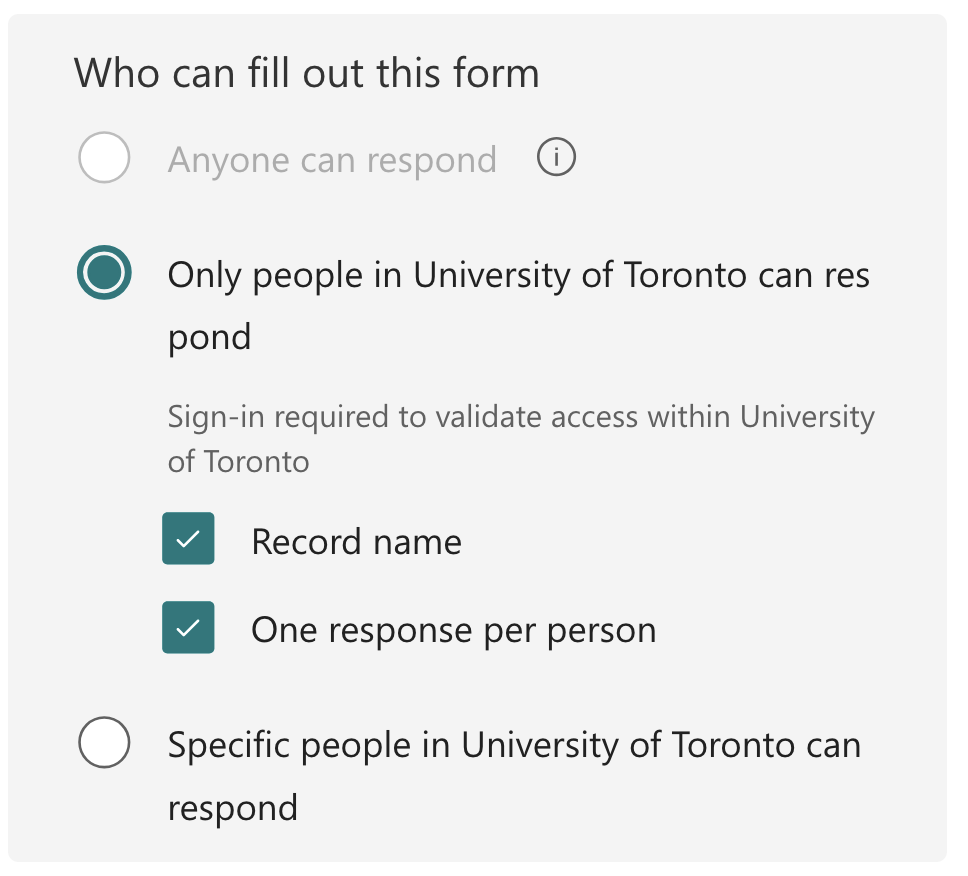
Response Settings
Unchecking Accept responses allows you to close the quiz manually. If the timer elapses, in-progress responses are autosubmitted. We also allow students to save their responses for their review.
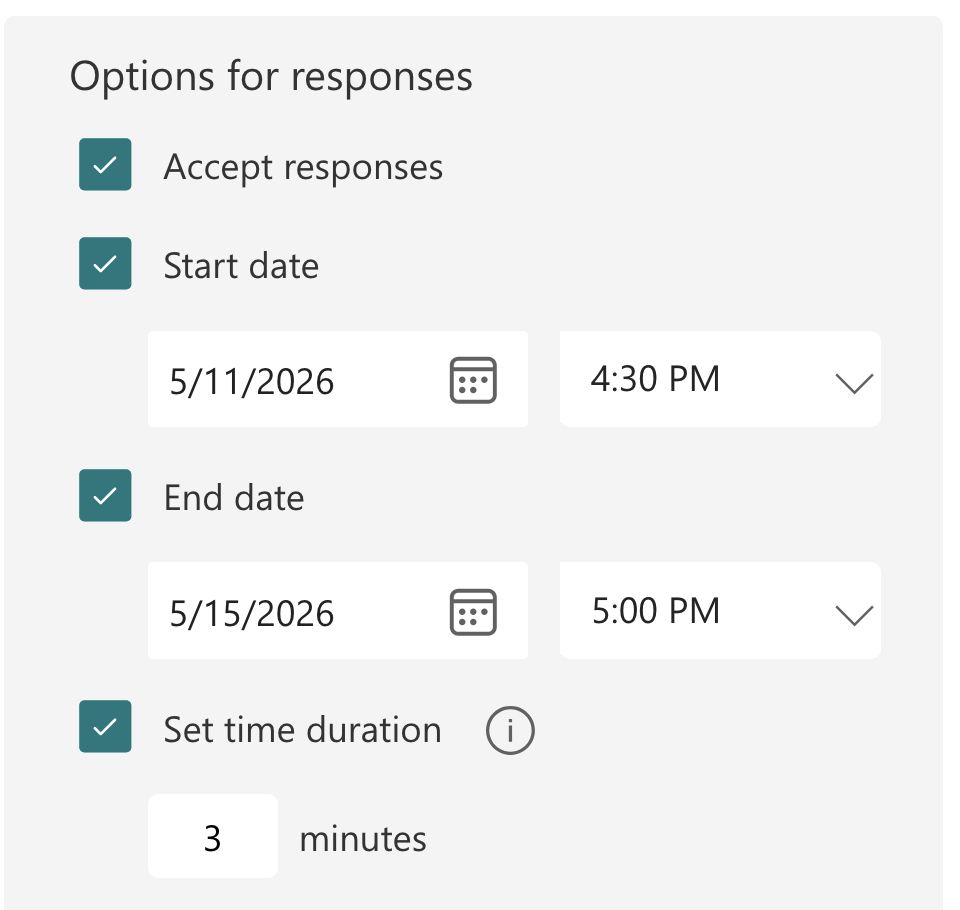

Distribution
To distribute a quiz, click Collect Responses at the top of the interface.

Do not distribute the long URL you see in your address bar while editing a quiz, it will not work for recipients.
In the modal window that appears after clicking Collect Responses, optionally shorten URL (recommended) and click Copy link for distribution:
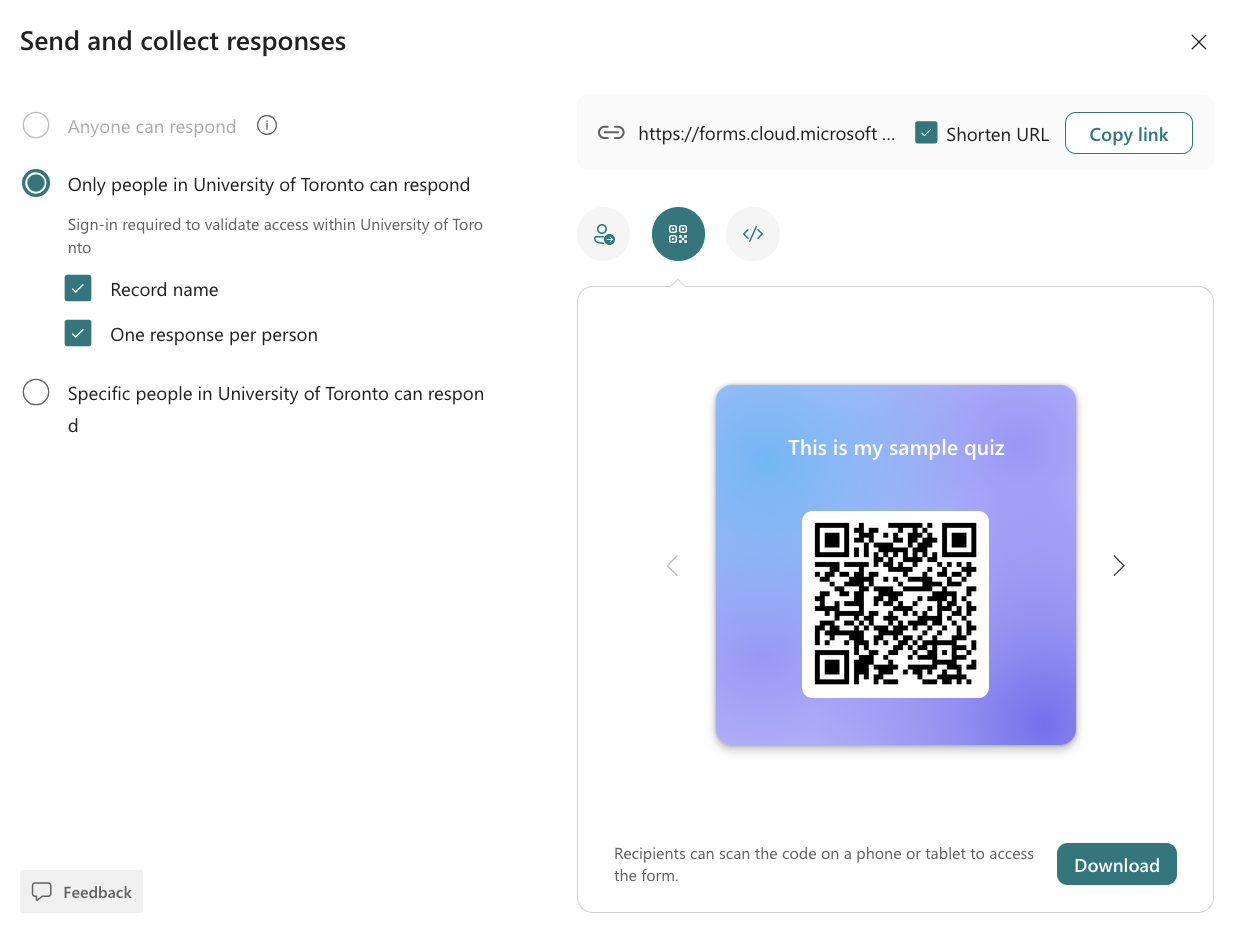
In this example, we’re ensuring respondents are logged into with their UTORids and that only one response is accepted per recipient.
You can also generate a QR code for the URL and download it if you’d like to run your quiz in-person. Note some students will not have phones - the shortened URL will make it easier for those without phones to access the quiz.
- MS Forms can force students to log in using their UTORid (via Only people in University of Toronto can respond) so all responses are identifiable - this is a requirement if you want to collect file uploads.
- Distribute your quizzes by sharing the (optionally shortened) URL
- There is a feature to limit access to only named individuals, but the interface does not accept a list of student emails so we’ve found this to be impractical
- Do not use the built-in email tool to distribute your quiz - use a BCC email instead - the built-in tool will expose email addresses to all recipients
Grading
Access the grading interface via View Responses

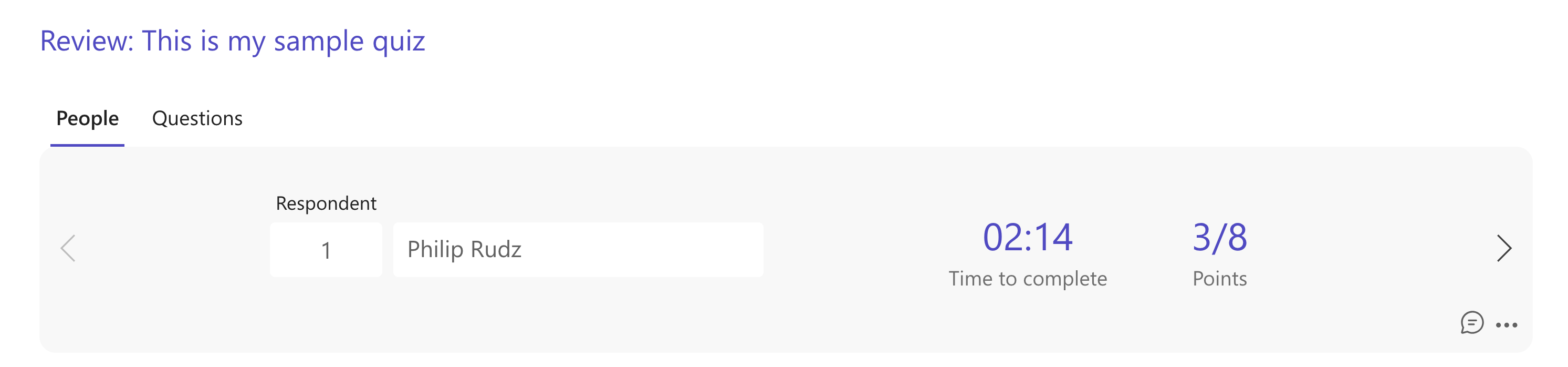
..then click Review answers. Alternatively, you can view all the responses on the linked spreadsheet. The post scores option reveals your feedback as well as the grades to students. This is optional as the linked spreadsheet will contains the score for students.
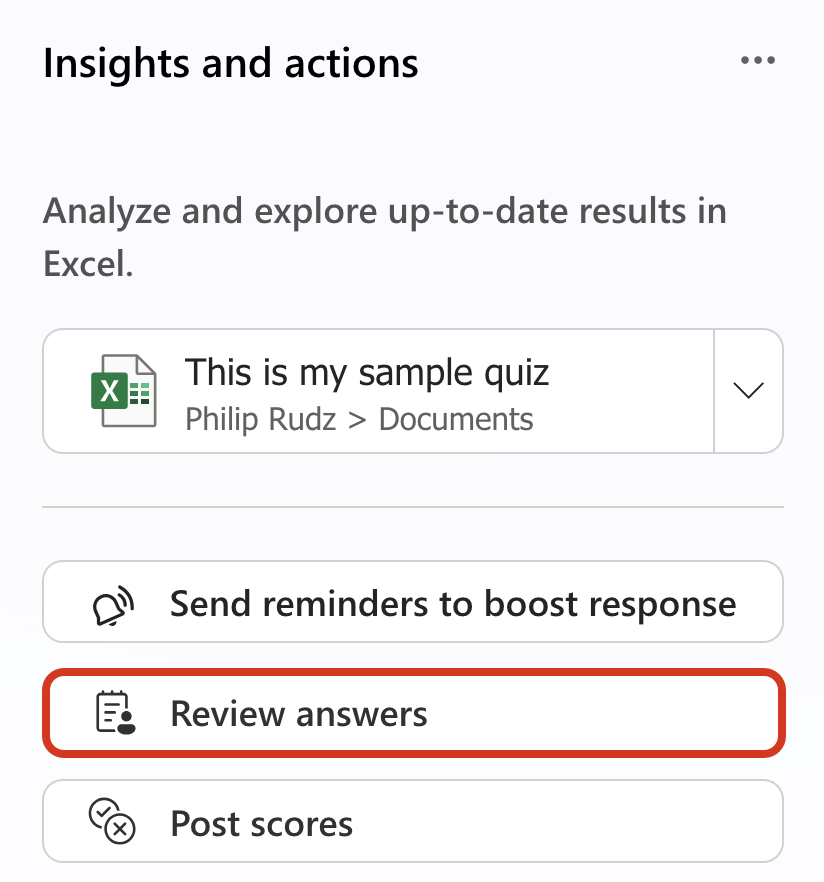
You can choose between by-quiz and by-question grading by toggling between People and Questions
Importing grades to Quercus
There is no automated connection to get grades back to Quercus, you will have to import the grades manually (but we can help with this). You can import grades using a gradebook export/import process in Quercus.
More Information and Support
Contact teachinglearning.artsci@utoronto.ca for additional help.